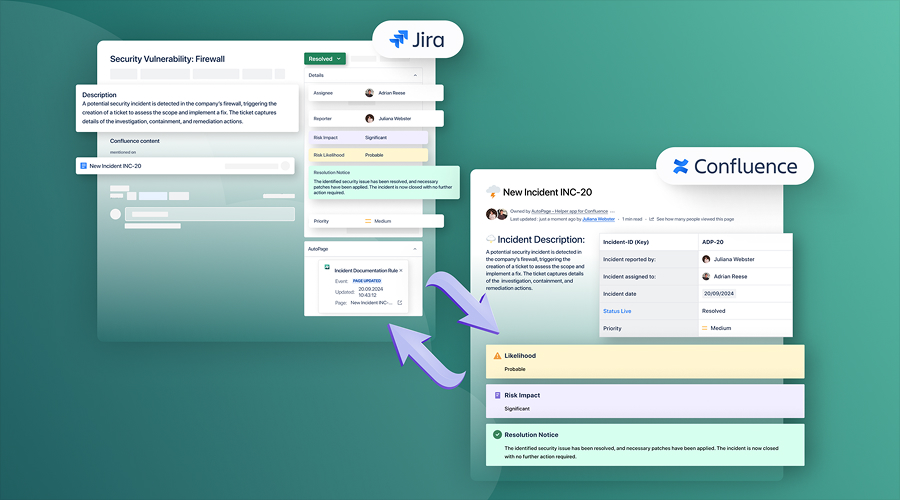
Are you spending time troubleshooting manually creating Confluence pages every time new Jira issues come through? Automation is here to do the hard work for you. Jira Automation helps define and redefine rule sets and can help eliminate the human involvement in your manual workflow. This article will guide you through how to create Confluence pages directly from Jira automations. Once you’ve mastered this, you’ll wonder how you ever functioned this way.
Why Automate Confluence Page Creation from Jira?
Manually creating documentation is a chore and quite a bit of time consuming. Your teams repeatedly go through the same motions. Developers, producers, and project managers spend valuable time on repetitive work. Automating documentation also supports Agile project management by keeping project information organized and consistently updated.
Consistent documentation is one of the biggest benefits from automation. Every page generated follows the same design patterns. Documentation accuracy improves because you’re removing a human from the equation. Teams are following a similar structure in their documentation, making collaboration across software development teams much more efficient. Developing your knowledge base will become a fraction of the time it used to. Stakeholders are notified automatically without any reminders. Lastly, collaboration is superior when you’re able to publish immediately.
Prerequisites Before You Begin
You meet the following prerequisites:
Jira Cloud subscription (Automation does not work on Server instances)
Connection to the Confluence Cloud workspace
Administrator rights on both services
Familiarity with Confluence pages and Jira issues
Permission to create automation rules in Jira
You’ve got a Confluence space where automation can create pages
You have an active API token or OAuth connection between services
Step-by-Step Guide to Creating Confluence Pages with Jira Automation
Setting up Jira Automation to create Confluence pages is easier than you might think. Follow the steps below to automate your documentation workflow in just a few minutes.
Step 1: Create a New Automation Rule
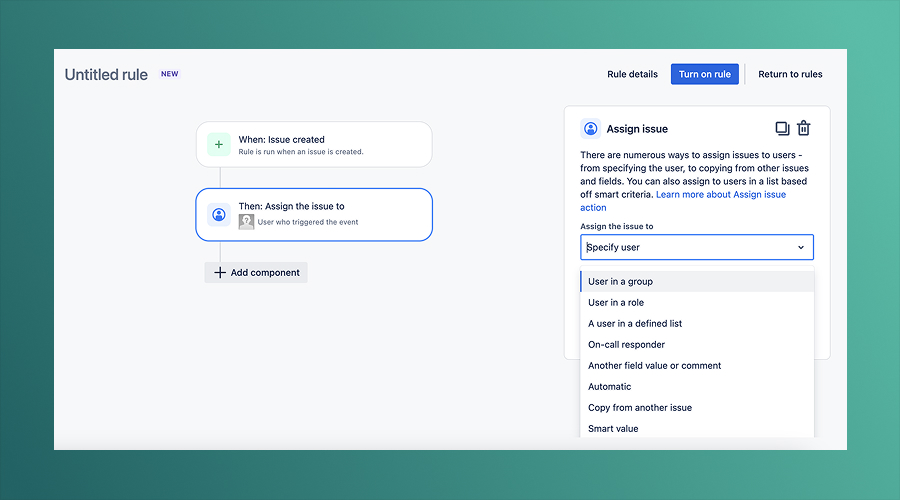
Go to your Jira Project Settings. Click Automation in the sidebar menu. Press “Create rule” button. Click “Builder” to keep things simple. Give your rule a clear name that will make it easy for anyone on the team to identify it and what it does, simply.
Step 2: Choose the trigger event
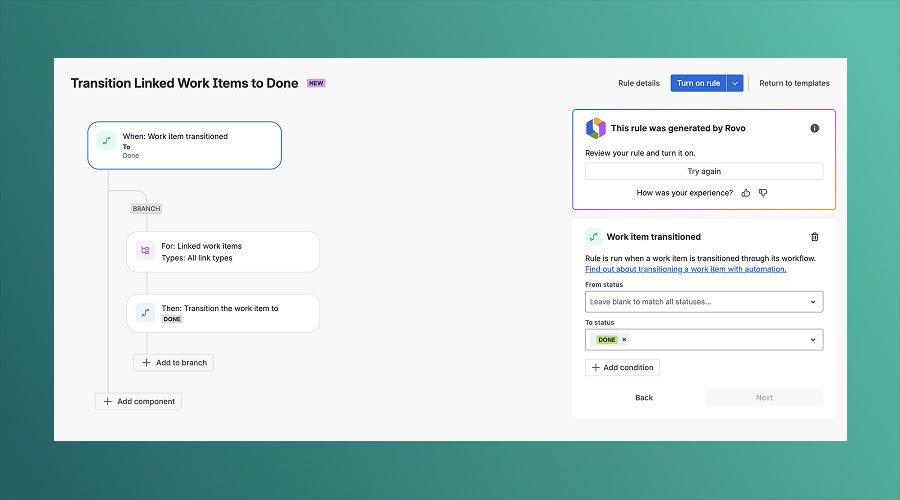
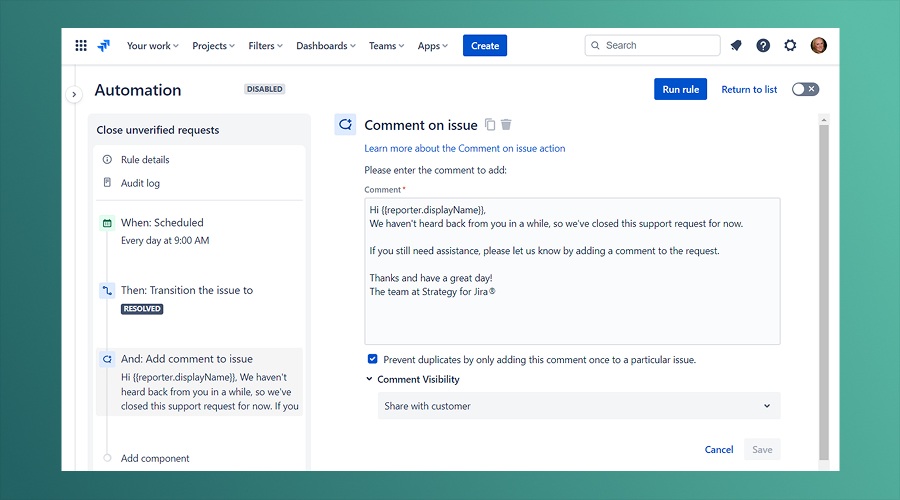
Automations are kicked off by triggers. We’re going to pick a new “Issue created” event that will prompt a Confluence page to be created each time a new issue is created. If you need Confluence pages to be created based on a workflow transition, go for the “Issue transitioned” event. Similarly, the “Issue updated” event happens when certain fields are updated. The “Scheduled” event is triggered at a specific time interval. It all depends on your needs and scenario.
Step 3: Add conditions (optional)
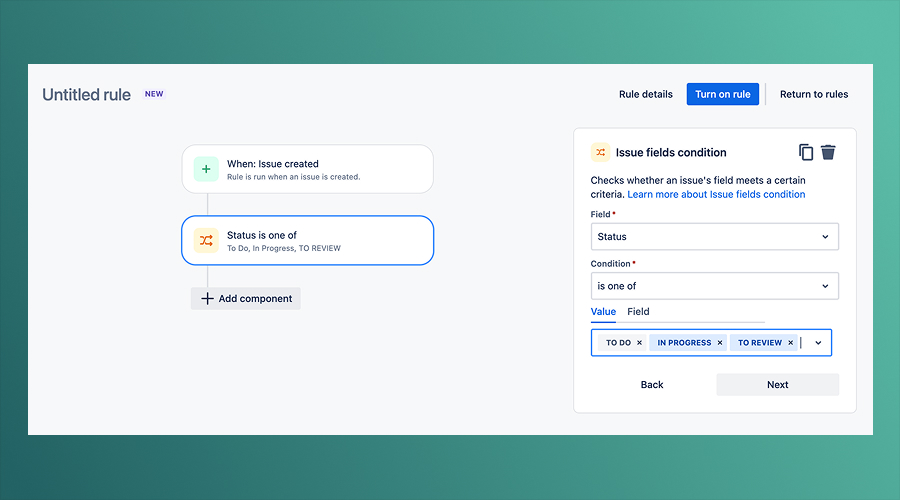
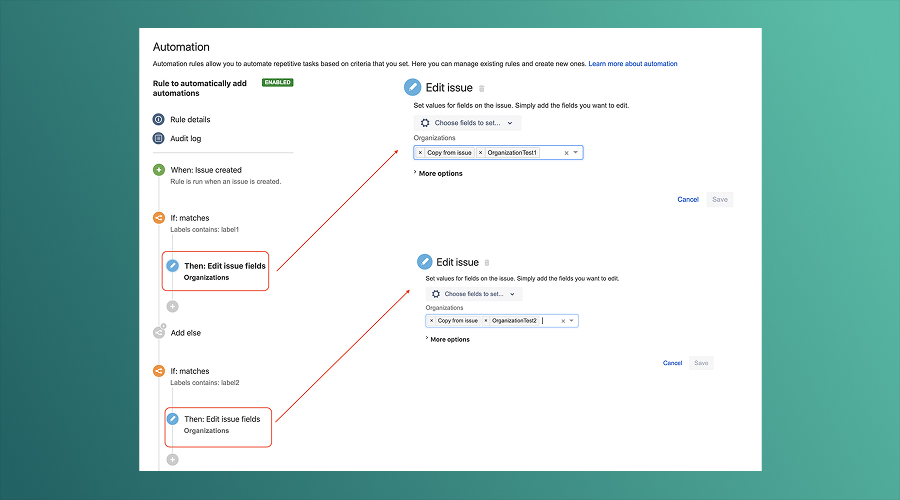
Add conditions to limit which issues trigger your automation. Not all issue types need documentation. Narrow your automation by limiting projects, assignees or priorities. Conditions add an extra step that can stop Confluence pages from being unnecessarily created. Leave this step blank and your rule will trigger for every issue.
Step 4: Configure the “Create Confluence page” action
Click “Add action”. Search for “Create Confluence page” in the list of available actions. This is what will actually set Jira up to create your page. Make any adjustments you need to before you test. You can add multiple actions to a single rule.
Step 5: Define the page title
Page titles should be easily understood. Use simple values such as the issue key or summary. The following example creates a page title that combines the issue key and summary: “{{issue.key}}: {{issue.summary}}” The page title appears in the navigation and search results in Confluence. Use titles that make it easier for future readers to see which page may contain the content they’re looking for.
Step 6: Add Dynamic Content Using Smart Values
Smart values allow you to pull Jira information directly onto your Confluence pages. To do this, use issue fields such as assignee and reporter, issue priority and description. An example shows you how to include the assignee: {{issue.assignee}} Use information captured in other fields to display issue priority: {{issue.priority}} Use the issue summary {{issue.summary}} The issue description can be added to the page as: {{issue.description}} This personalises the information displayed.
Create your page templates with sections (e.g. issue summary, acceptance criteria, technical description). Add fields that may help, such as the issue reporter, assigned user and issue due date. To aid navigation, add the issue’s linked issues. Create a template and it will become consistent automatically.
Step 7: Select the Confluence Space and Parent Page
Choose the Confluence space where the page is created. Select the correct space that displays the correct hierarchy or relationships for your project. If the page is created under a parent page on Confluence, select it. Then your hierarchy will have a logical structure and will be easier to navigate.
Step 8: Test the Automation Rule
Disable the rule initially. Create test issues matching trigger conditions. Verify Confluence pages generate correctly. Check formatting, content accuracy, and placement. Examine smart values populate correctly. Review page templates render properly. Test multiple scenarios covering various issue configurations.
Step 9: Publish and Enable the Rule
After testing is successfully completed, publish the rule. Enable it. Observe the initial results. Verify that the page generation continues to work as expected. Watch for any errors. Tweak the rule if the behaviour varies from expectations.
Step 10: Verify the Generated Confluence Page
Open the correct Confluence space. Find the newly created page. Verify the page content and formatting. Verify that the smart values work correctly. Verify the page content and formatting. Verify the page hierarchy and positioning. Verify the page works correctly for the intended audience. Verify the page contains the correct links and cross-connections.
Common Confluence Pages you can create with Jira Automation
Release Notes: automatically create release notes when issues are resolved
Bug Reports: generate bug report pages with full reproductions and impact
Feature Documentation: automatically generate feature and implementation pages
Project Documentation: generate project pages when issues are marked as finished
Knowledge Base: auto create searchable documentation library pages from issue data
Change Log: generate change log pages when system changes happen in Jira workflow
Meeting Minutes: generate meeting record pages when issues are marked for discussion
If you’re exploring Jira and Confluence automation as part of a larger product, internal platform or digital transformation initiative, you’re likely looking to solve more than just documentation challenges. Often, automating a single process is the first step toward creating more efficient, connected and scalable ways of working across your organization.
These are the kinds of challenges we enjoy discussing with product teams, founders, and engineering leaders. Every organization has unique workflows and there’s rarely a one-size-fits-all solution. Sometimes, a simple conversation can uncover new opportunities to streamline operations, improve collaboration or solve problems that have been slowing teams down for years.
You should use Jira Automation to sync issue creation with Confluence page generation. This eliminates bottlenecks. Teams remain consistent with less administrative work. This integration simplifies knowledge management. Begin today. Save time. You will thank yourself later!
Yes, Jira Cloud Premium or higher subscriptions include Automation features. Server versions lack this functionality. Standard Cloud plans cannot access Automation. Upgrade to Premium for complete automation capabilities.
3. Can I Use Smart Values in Confluence Page Templates?
Smart values work extensively within page templates. Reference any Jira issue field using appropriate syntax. Build dynamic pages reflecting current issue information automatically.
4. How Do I Create Pages in a Specific Confluence Space?
Configure the “Select Confluence space” setting within action parameters. Choose your target space from available options. Pages appear automatically in specified locations.
5. Why Is My Automation Rule Failing to Create a Page?
Multiple factors cause failures. Verify your Jira and Confluence connection remains active. Confirm Automation rule published and enabled. Check trigger conditions match your test scenarios. Review permissions allow page creation. Examine smart values syntax matches Jira field names exactly. Test incrementally with simpler rules first.